About two months ago I received an email from TotallyRad! Inc, a company known for awesome Photoshop actions and Lightroom presets. They asked me to review their new film presets for Adobe Lightroom – presets that allow photographers quickly and easily edit images so that the final product looks as if it were shot on different types of film.
I am a huge film photography aficionado – I shot film professionally for many years and even when I switched to digital for all of my commercial work I still shoot a ton of film for personal projects. When VSCO came out with Adobe Lightroom presets about two years ago, I was completely blown away. They did an amazing job of replicating all the wonderful tonal properties of different films and crossing the bridge between digital and analog images.
When TotallyRad! asked me to review their new presets, I was very hesitant – while I generally embrace change, I’ve been in love with VSCO film presets for so long, I did not want to try another product. A few weeks ago I finally got enough free time to sit down and play with Replichrome presets for a few hours. Let me tell you, they are pretty damn great.
While VSCO offers separate sets of Lightroom presets specifically calibrated for Nikon and Canon cameras, Replichrome presets are split based on commercial film scanners – Noritsu and Frontier.
I edited a single image using most presets by both VSCO and Replichrome. All Replichrome edits were done using Noritsu presets (since I prefer tonal qualities of that particular scanner). Each pair of images has a Replichrome edit at the top and a VSCO edit on the bottom. Even though both companies offer presets for simulating under- and over-exposure, I edited this image using standard exposure setting. The image was straight out of the camera and edited ONLY using the presets.

Fuji 160C
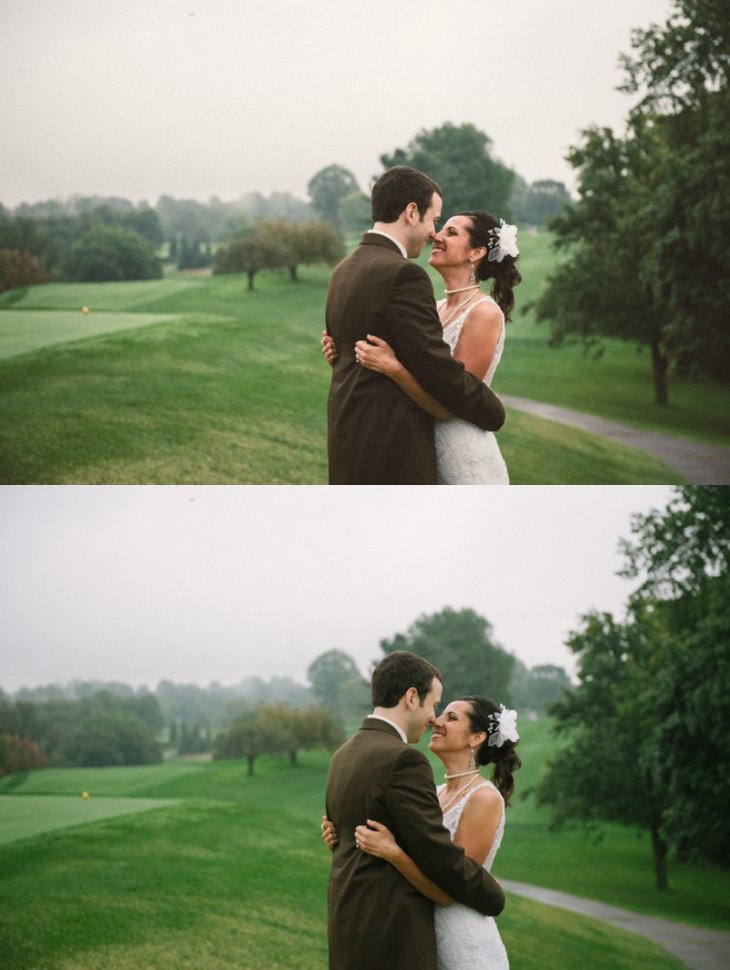
Fuji 400H
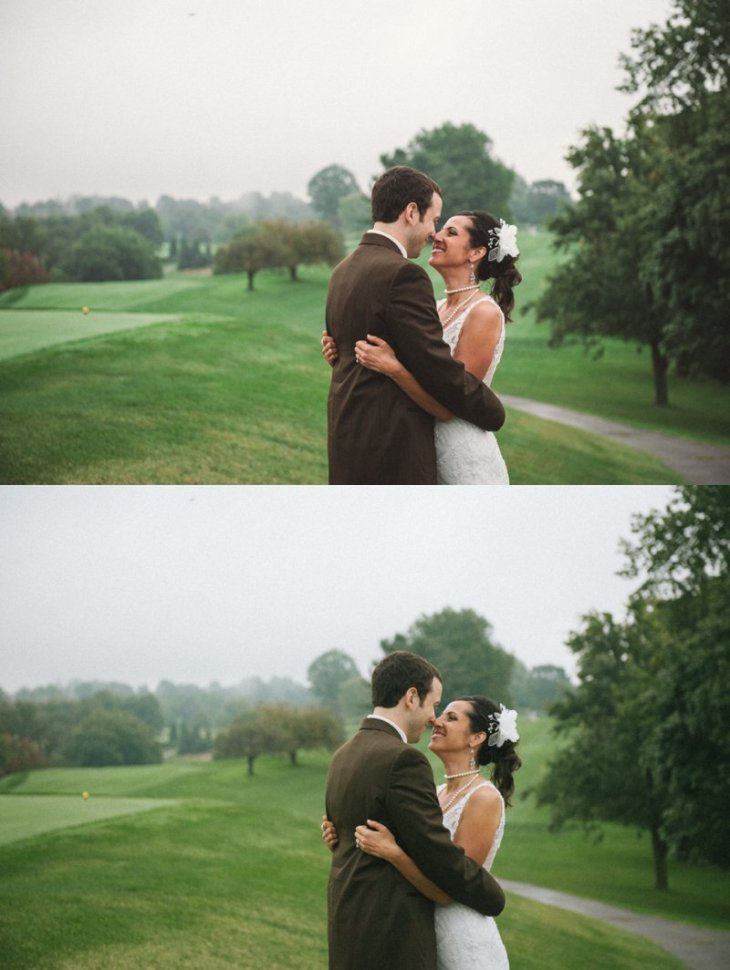
Fuji 800Z
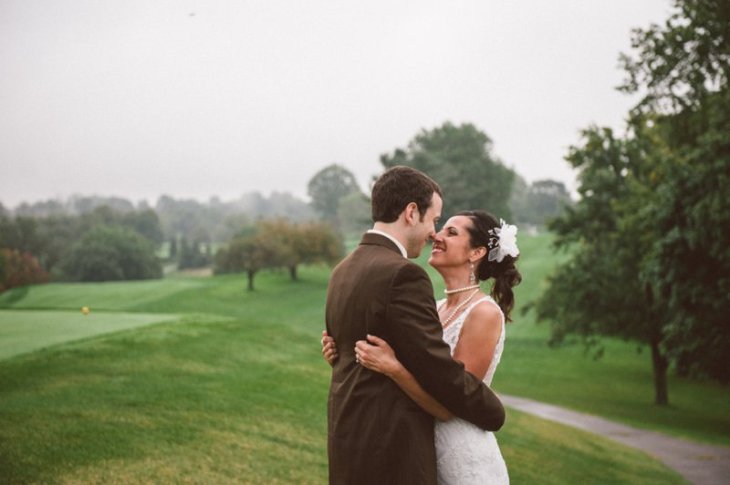
Fuji Reala 100 (Replichrome only)

Kodak BW 400CN (Replichrome only)
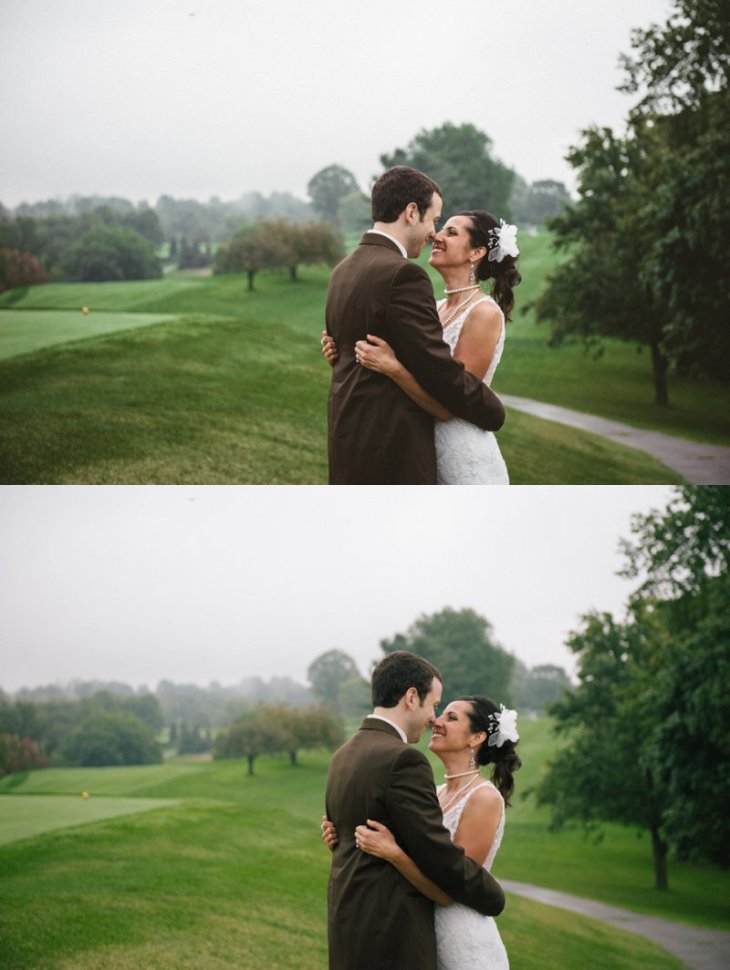
Kodak Portra 160

Kodak Portra 400
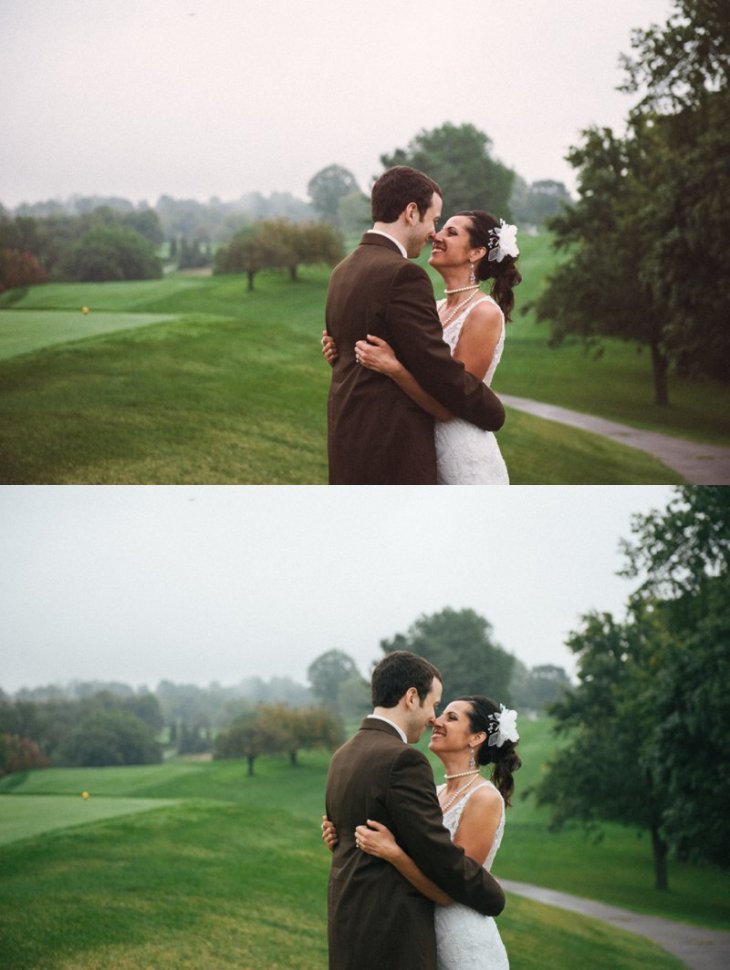
Kodak Portra 800

Kodak T-MAX 3200
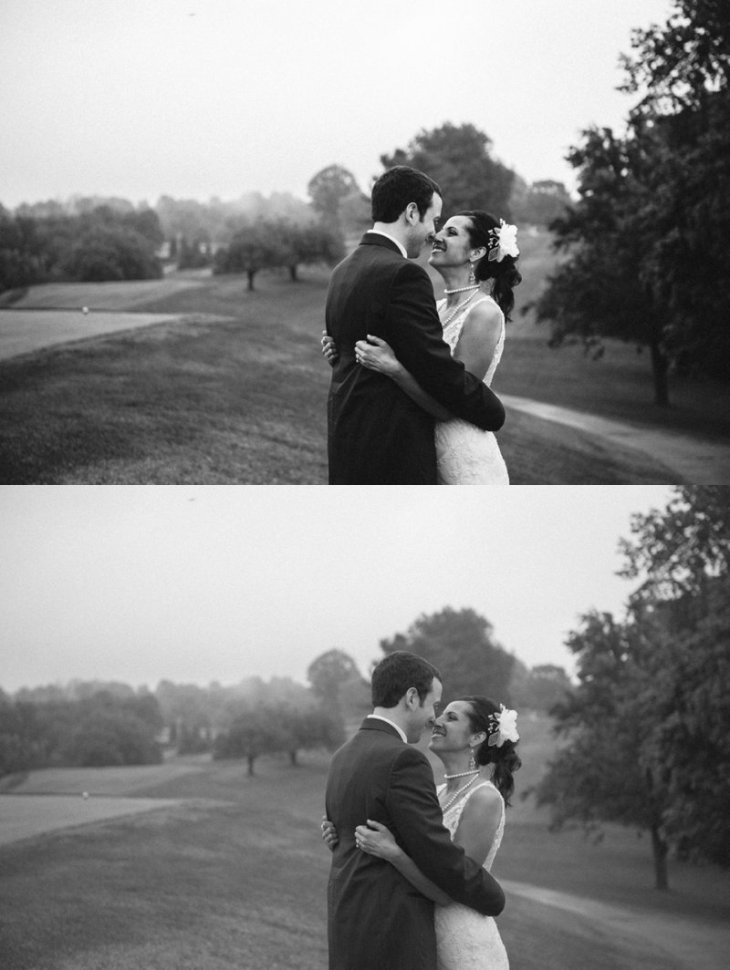
Kodak Tri-X 400
 I admit it. I am a film addict. I got my first camera in 1985 as a present for my 8th birthday and have been shooting ever since. My introduction to photography had one condition – my mom told me that I would get allowance money for film only if I learned to develop and print it on my own. I spent the next couple of years of my life begging, borrowing and, on one special occasion, stealing darkroom equipment and chemicals. By the time I was 11, I had a fully-stocked darkroom and would spend every free moment tinkering with an antique Soviet-made enlarger and inhaling toxic chemicals in a poorly-ventilated closet (which probably explains a lot about the way I turned out).



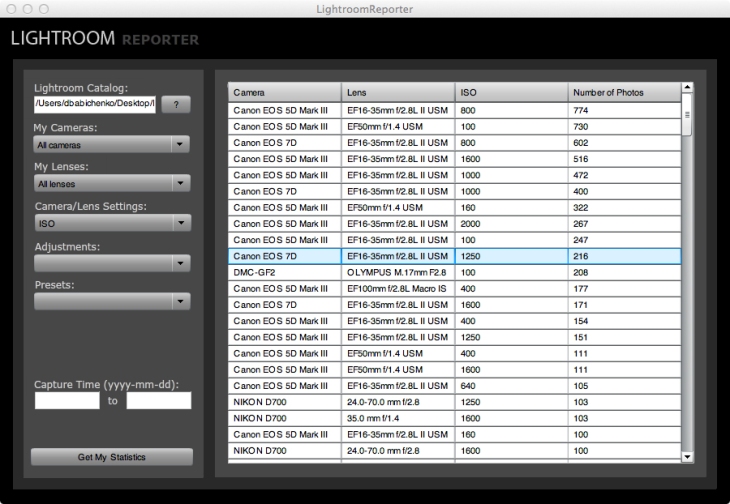
 A few days ago I wrote
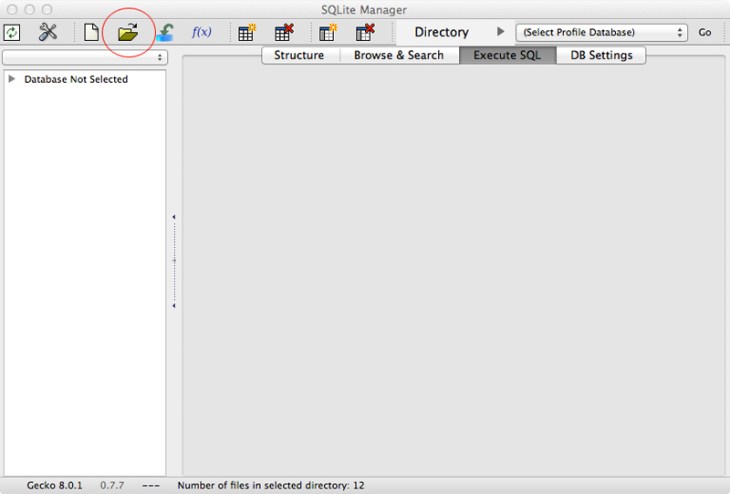
 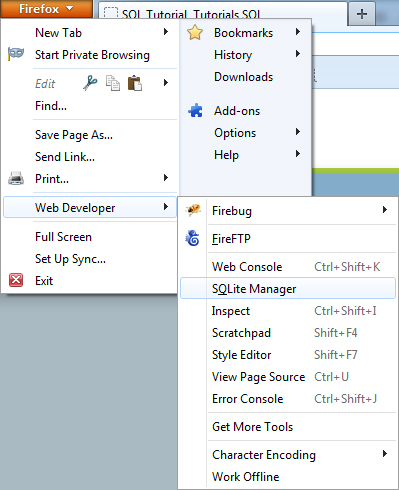 When SQLite manager launches, click the “Open” icon at the top menu bar.
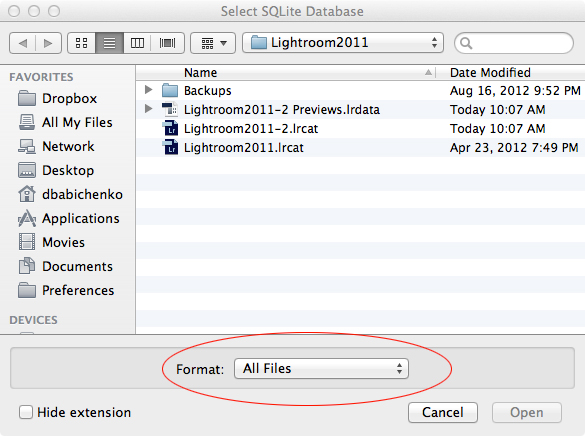
  Browse to the location of your Adobe Lightroom catalog (a file with “.lrcat” extension). Make sure to select “All Files” in format choices.
  Double-click on Lightroom catalog that you’d like to load.
 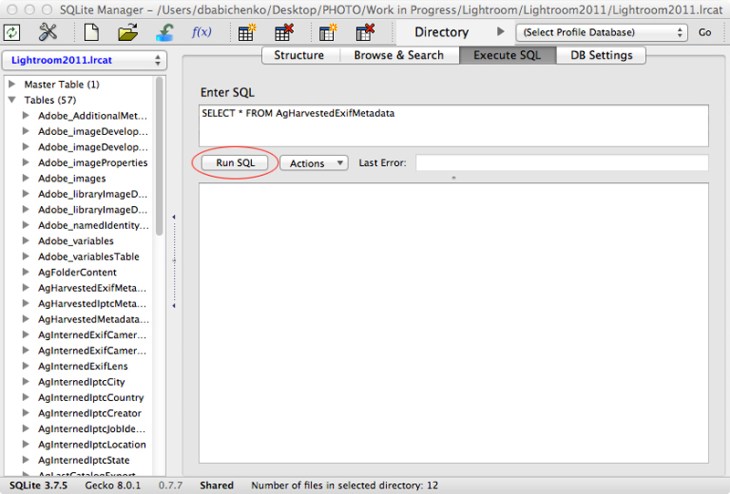 Once Lightroom catalog loads, click on “Execute SQL” tab. On the left-hand side of window you’ll see a list of tables that contain all of Lightroom’s data. On the right you will see a text field where you can type in your queries. Database queries are written in SQL (Structured Query Language) – it’s fairly standardized across all database vendors, so you only have to learn it once. Copy and paste the following query into the text field and click “Run SQL”. SELECT focalLength, COUNT(focalLength) FROM AgHarvestedExifMetadata GROUP BY focalLength ORDER BY COUNT(focalLength) DESC You’ll see a list of all lens focal lengths that you’ve used in your photographs.
 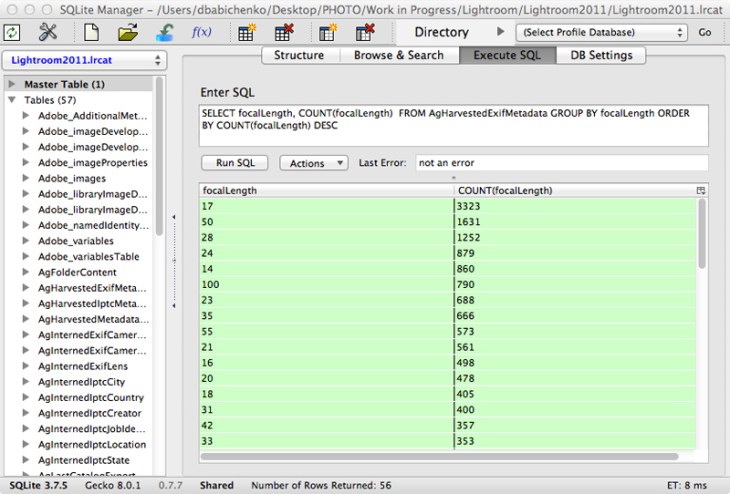 Now type in SELECT b.value, COUNT(b.value) FROM AgHarvestedExifMetadata a JOIN AgInternedExifLens b ON a.lensRef = b.id_local GROUP BY b.value ORDER BY COUNT(b.value) DESC and click “Run SQL” Now you should see a list of all lenses used to take your photographs and you’ll be able to easily tell which lenses you use most often. When I have a bit of downtime this winter, I would like to write a cross-platform application that will pull statistics from Adobe Lightroom and Apple Aperture. I am planning on releasing this app under Creative Commons license, which means it will be free to use and modify. If you are a photographer and would be interested in being able to compile statistics from Lightroom or Aperture, shoot me an email or post on my Facebook page and let me know what statistics would be most useful to you. If you are interested in learning more about databases, check out
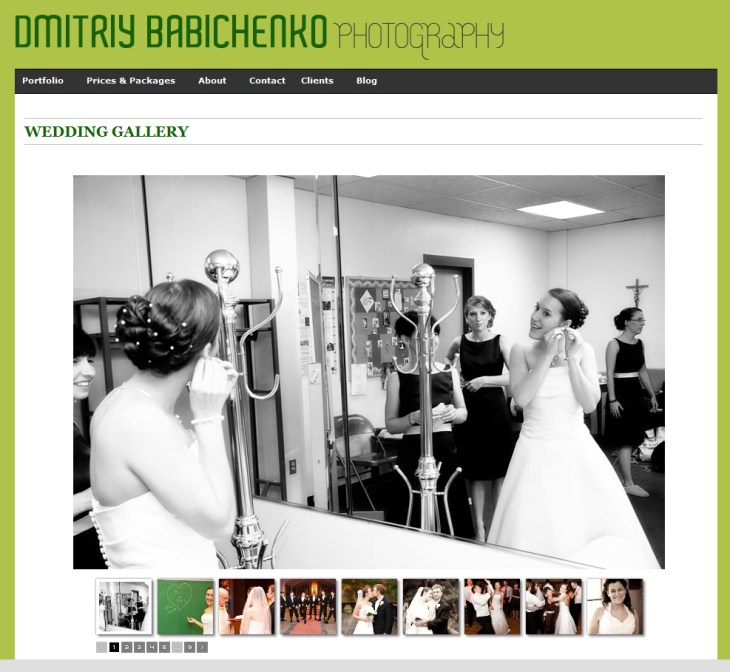
  Check out this handsome guy! His name is Jonathan and a few days ago
  Sometimes having two jobs sucks. However, more often then not, being a software engineer and a photographer is actually a pretty decent combination. Being a photographer helps me step back from the code and think about problems creatively. Being a software engineer helps me gain a very technical perspective on photography (yes, I am a geek and I actually know how CMOS and CCD sensors record image data). Another advantage of being a software engineer is that I can write software that helps me run my photography business. Over the years, I’ve written scripts, applications and even Photoshop plug-ins that managed my backups, batch-processed image files and geo-tagged vacation photos. My ability to write my own software saved me countless hours of dealing with repetative and boring tasks and allowed me to concentrate on things that I actually enjoy doing. Recently I found myself using
  Dmitriy B.
You must be logged in to post a comment.